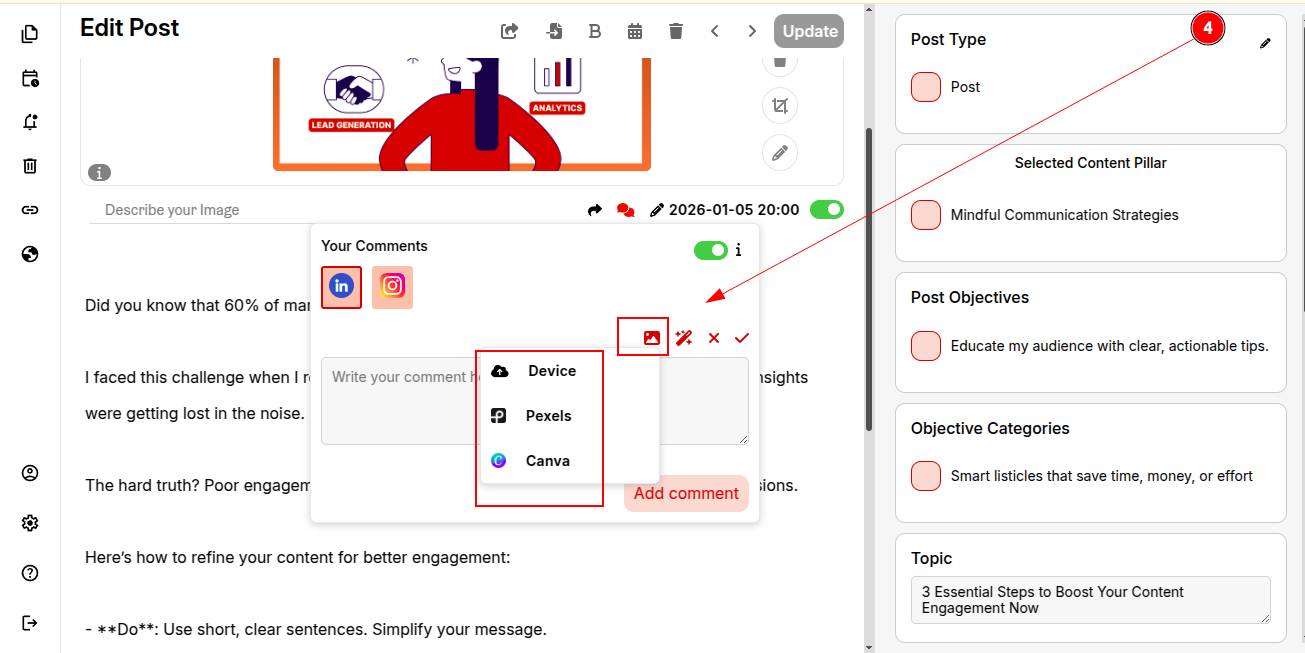
This is how you can turn every post into a conversation starter with ContentCraft.
You can also explore to link you canva account to directly import images in ContentCraft.

ContentCraft
Open Appi-Resonate Help Center
ContentCraft Help
BrandVoice
Content Campaigns
Scheduling
Team Management / WorkFlows
ProofLex Help
MindWrite Help
Self-generated comments are AI-created replies that automatically appear on your posts after publishing.
Instead of leaving the comment section empty, these comments help kickstart conversations and guide audience engagement.
Posts with early comments can see significantly higher engagement and visibility, as social algorithms prioritize active conversations over static posts.
ContentCraft automates this process by generating context-aware, on-brand comments that align with your post’s message and platform.
Once you open the post in the Content Calendar for which you want to generate self-comments. Follow these steps:
STEP 1: Make sure you’ve selected the publishing platform (LinkedIn) for the post. Now, click on the "Comment" icon as shown in the image below.
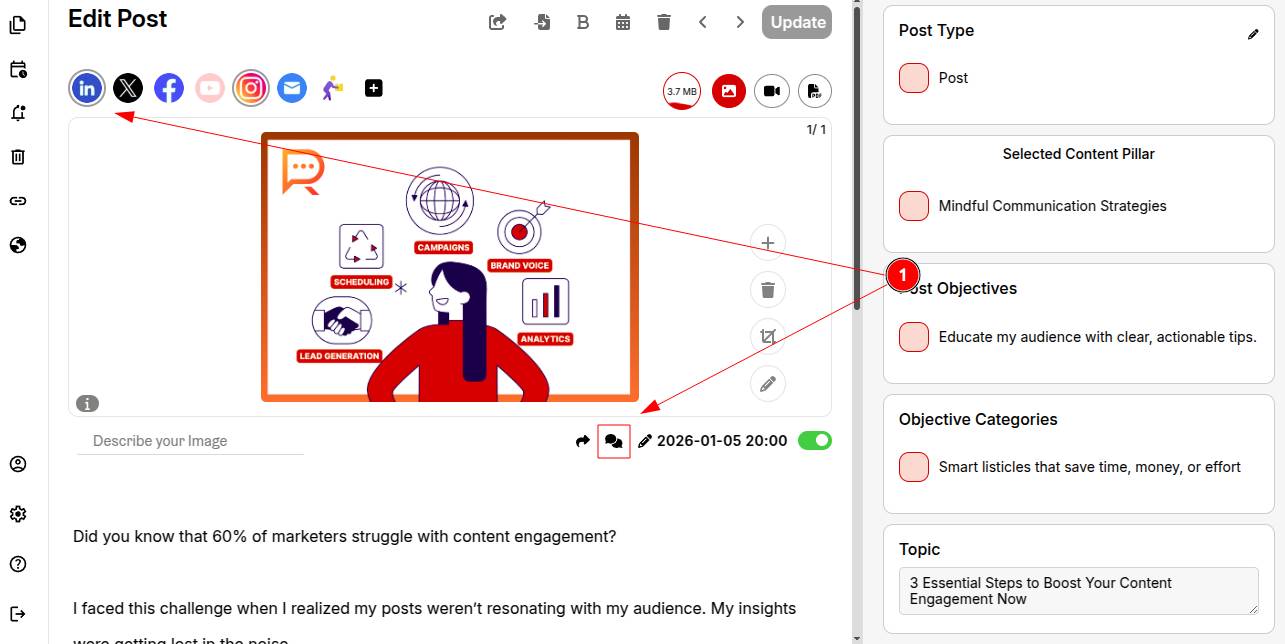
Step 2: Under this icon, choose the platform where you want to add self comments. And Click on “Add Comment.”
Note: Self-generated comments are currently available for LinkedIn. Support for other platforms is coming soon.
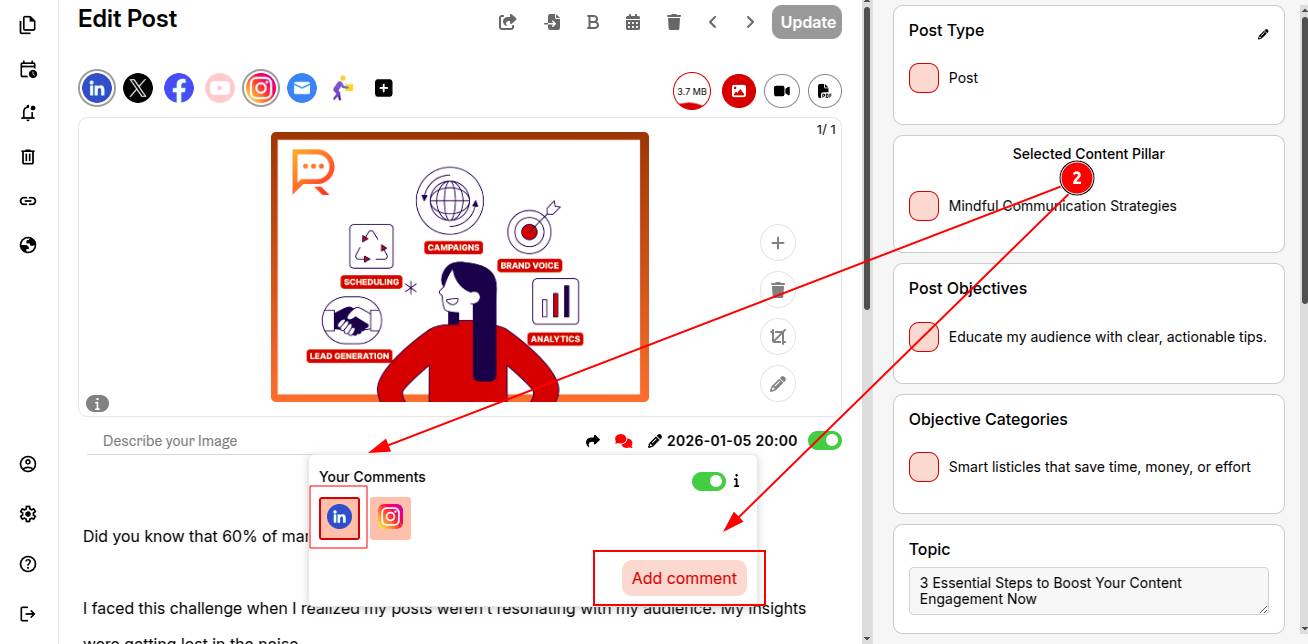
Step 3: Click the Generate icon to let ContentCraft create a comment for you.
If the comment fits your post, click the Tick icon to add it.
If not, click Generate again to see another option.
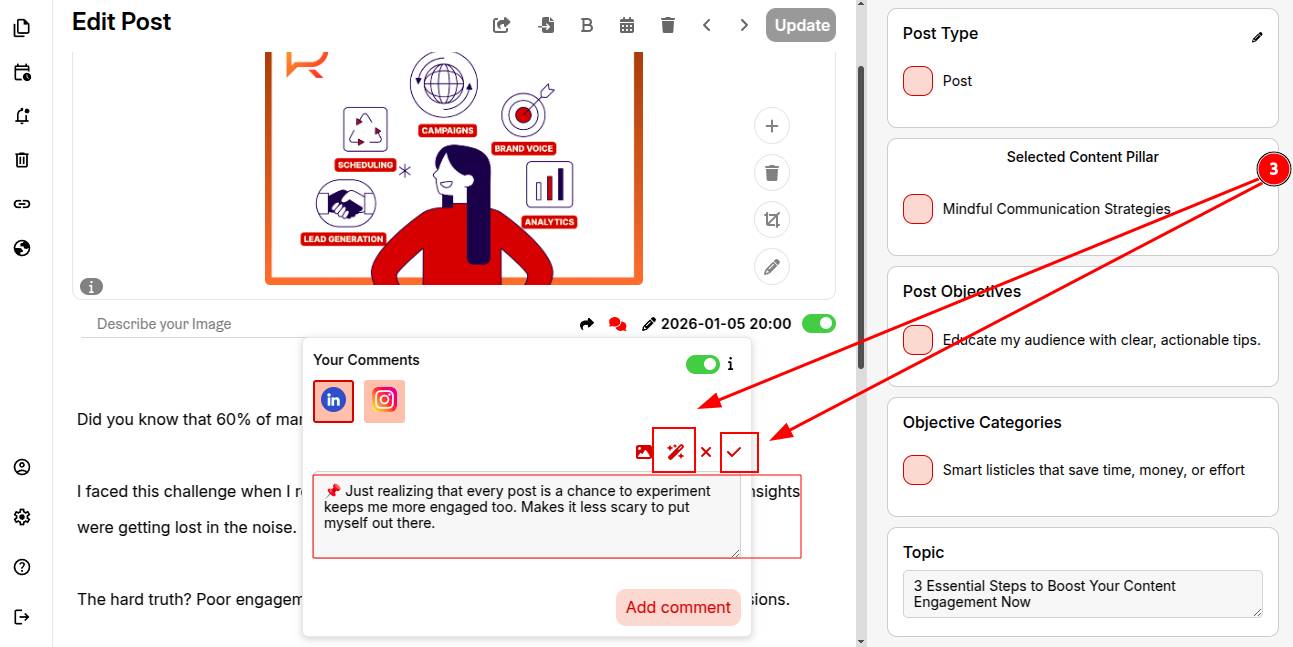
Step 4 (Optional): Click the Add Image icon and upload an image from your desktop to include it in the self-generated comment.