
ContentCraft
Open Appi-Resonate Help Center
ContentCraft Help
BrandVoice
Content Campaigns
Scheduling
Team Management / WorkFlows
ProofLex Help
MindWrite Help
Link YouTube Channel with ContentCraft
Linking your YouTube account allows you to manage shorts publishing more efficiently.
For creators and teams, this connection reduces repetitive work and ensures shorts are published on time.
Once your YouTube account is linked, ContentCraft helps manage video uploads and access playlists from one place. This makes it easier to plan and schedule video content alongside other social media posts.
Steps to link your YouTube Account with ContentCraft:
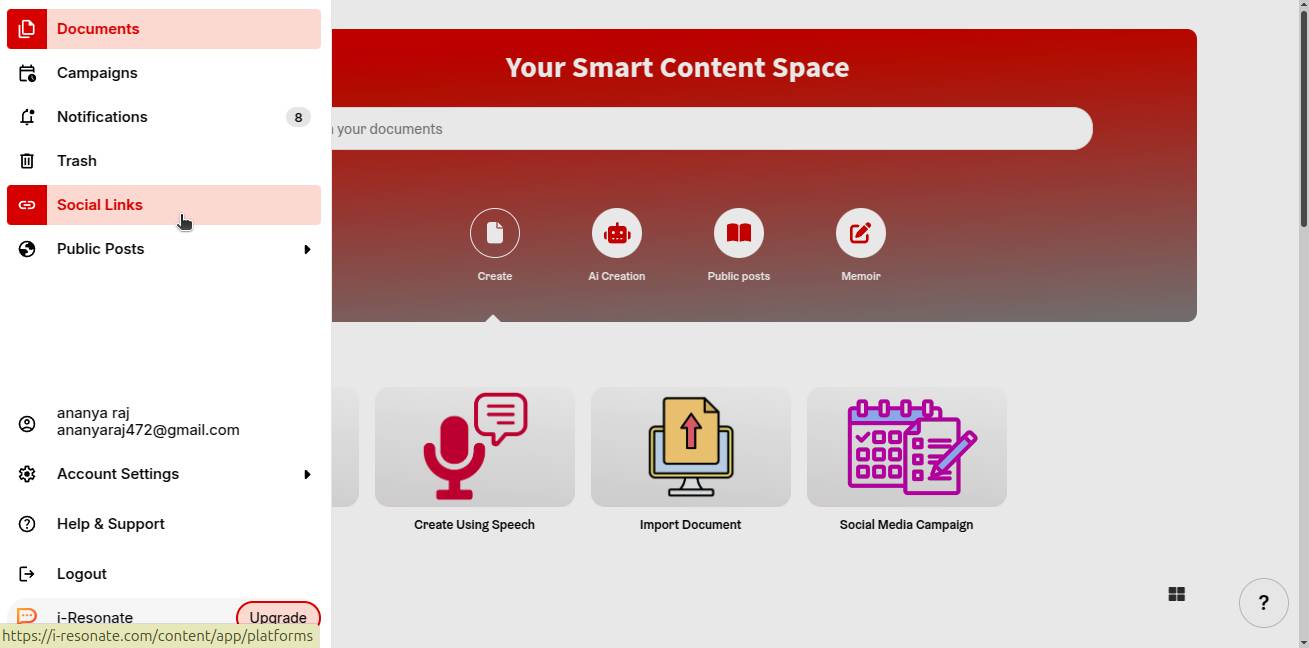
Step 1: Click on “Social Links” from the left navigation bar on the ContentCraft dashboard.
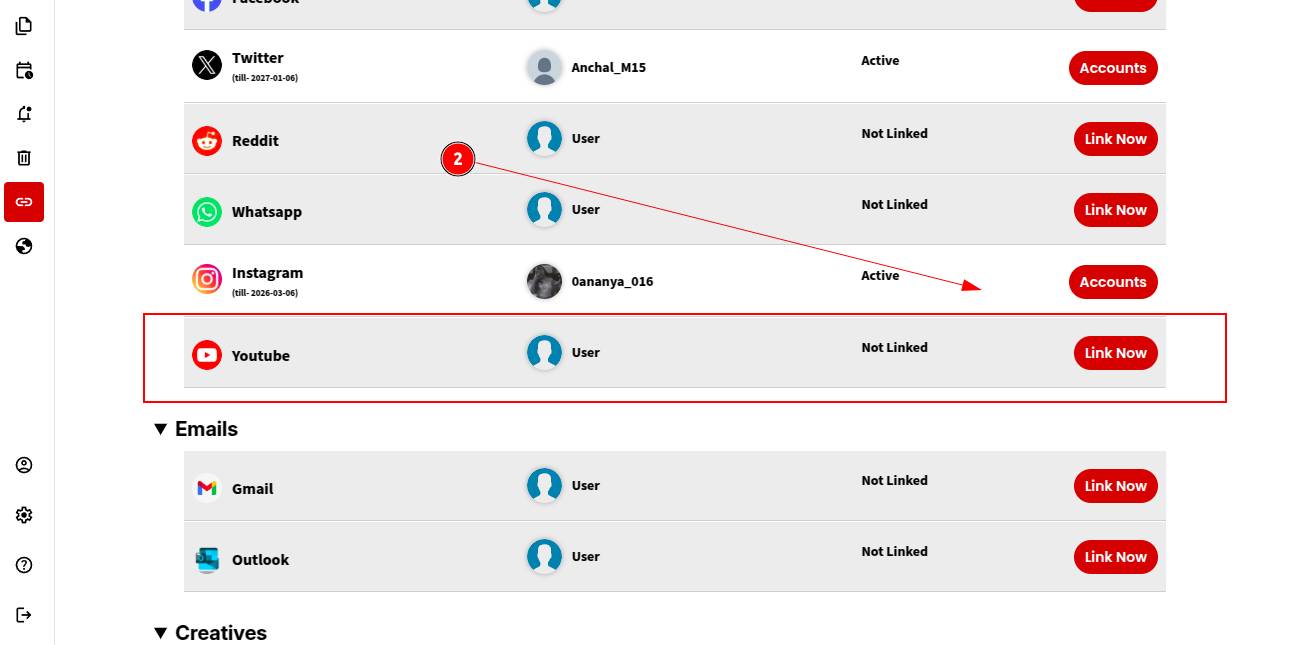
Step 2: Choose YouTube from the list of available platforms and click “Link Now.”
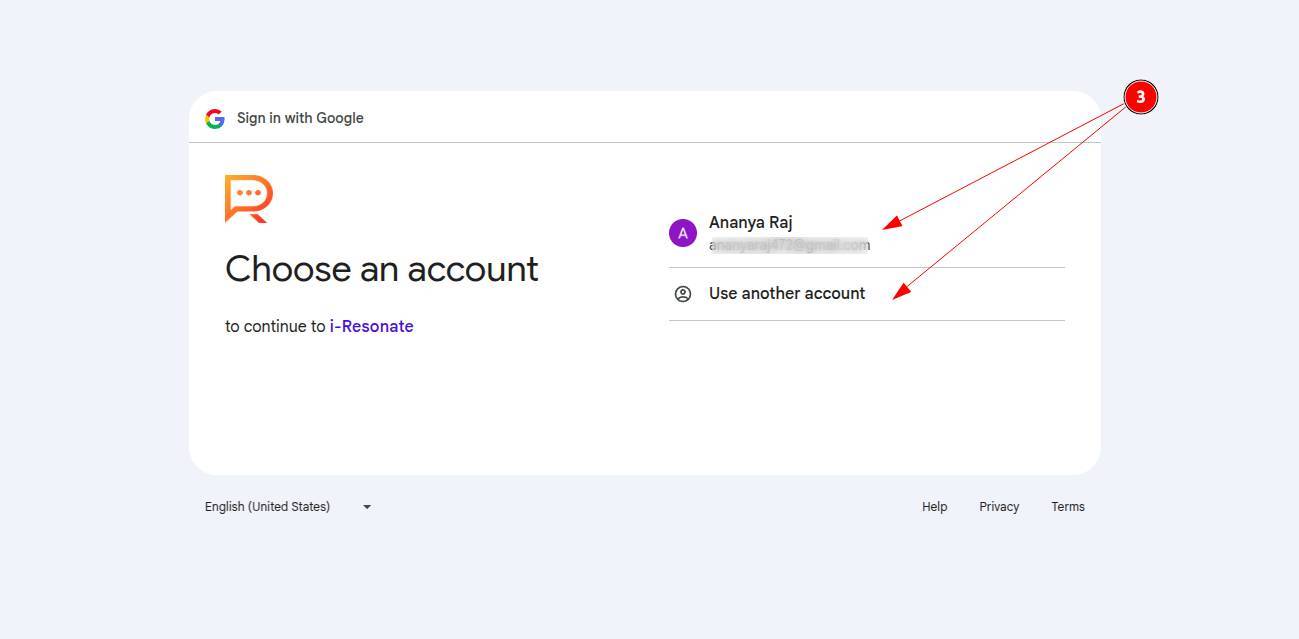
Step 3: Select the Google account associated with the YouTube channel you want to add.
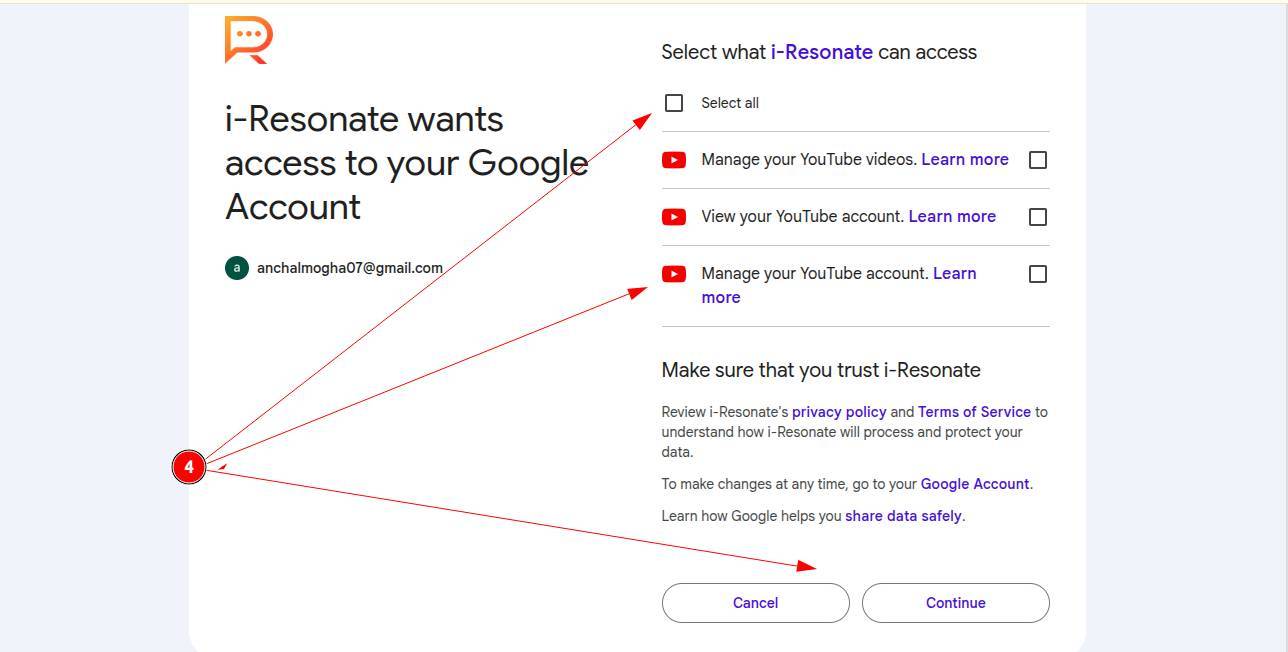
Step 4: Allow access so ContentCraft can manage video uploads and view playlists.
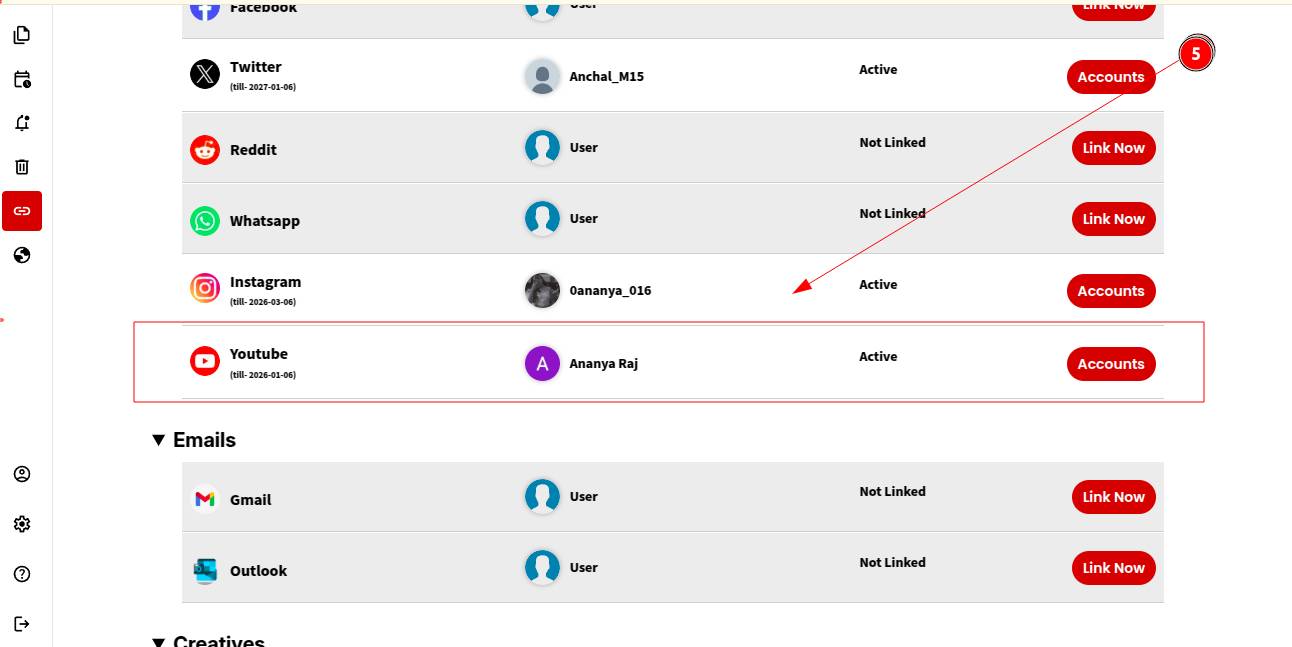
That’s it. Your YouTube account is now linked and you can manage video uploads and scheduling alongside your other social media content.
You can now explore linking your facebook account with ContentCraft.