
ContentCraft
Open Appi-Resonate Help Center
ContentCraft Help
BrandVoice
Content Campaigns
Scheduling
Team Management / WorkFlows
ProofLex Help
MindWrite Help
How to turn on auto replies for posts in ContentCraft
Auto replies are the automatic responds to the comments on your posts. They helps you stay engaged with your audience even when you’re not online.
By responding instantly, auto replies make your audience feel acknowledged and support stronger community building around your content.
ContentCraft makes this process simple by allowing you to enable auto replies directly from your content calendar. It ensures every post continues conversations automatically while you focus on creating and planning your next content.
Steps to turn on Auto Replies in ContentCraft:
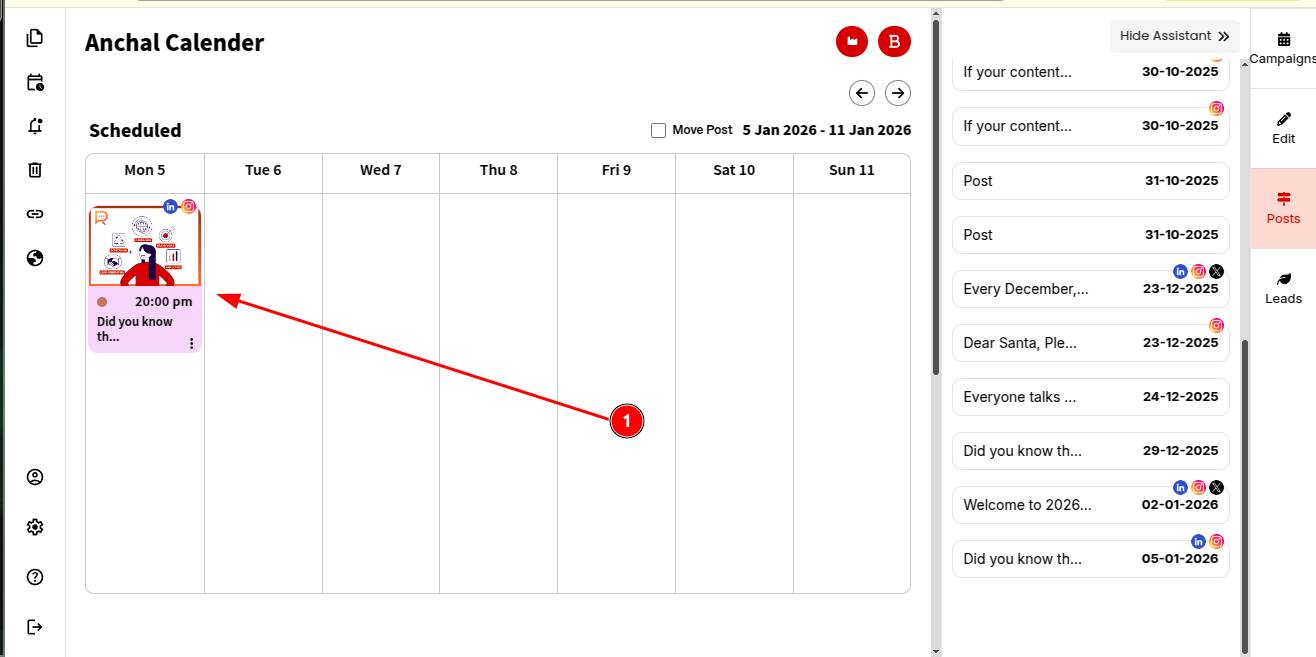
STEP 1: Open your post in the ContentCraft Calendar.
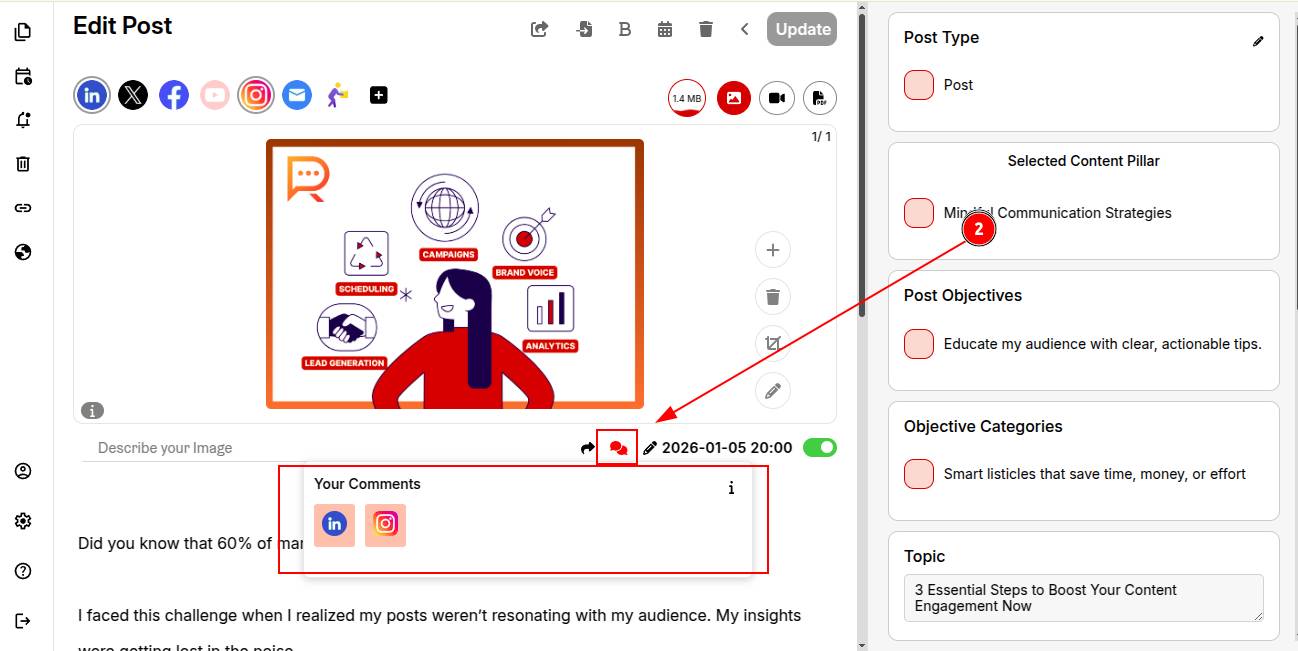
STEP 2: Click on the "message icon" shown below and select the platform where you want to turn on auto replies.
Note: Auto replies are currently available for LinkedIn Platform. Support for Instagram is coming soon.
STEP 3: Once the platform is selected, a toggle will appear in the mini screen. Turn the toggle green to enable auto replies for that platform.
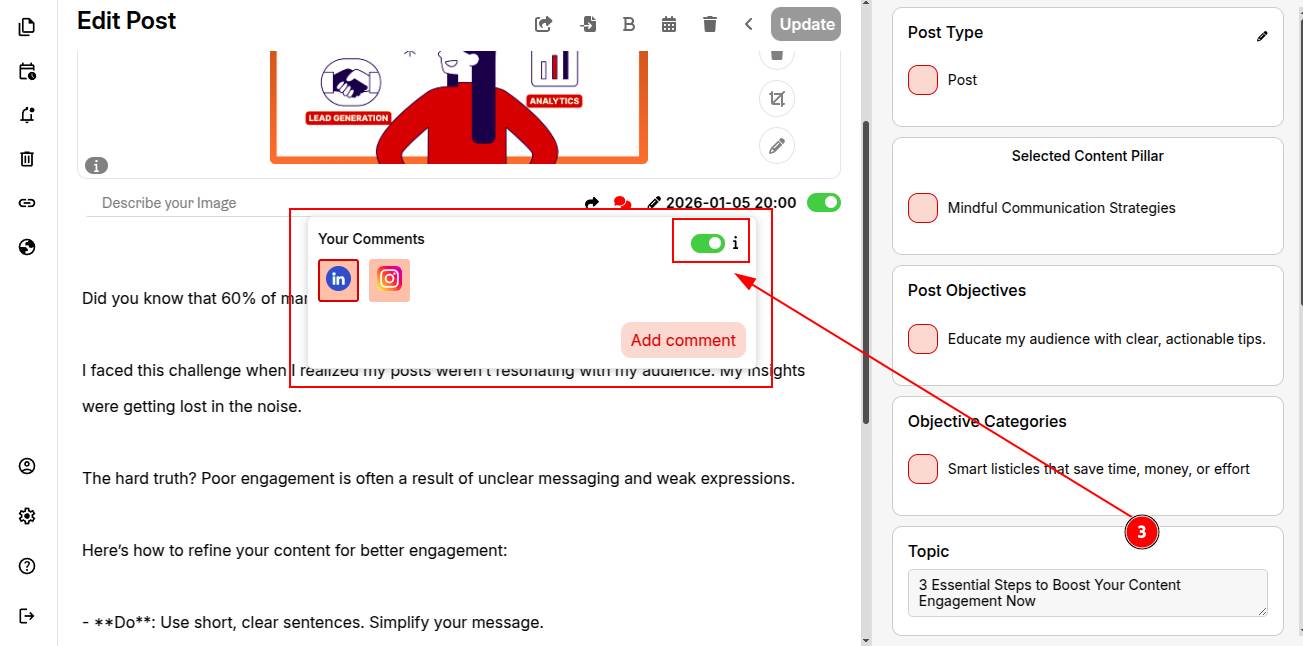
Once your post is published, ContentCraft will automatically respond to comments your post receives.
You can explore how to generate self-generated comments for posts in ContentCraft.