With ContentCraft, you can access and add Pexels images and videos directly inside the editor, so that there’s no need to download files or switch between tools while planning your content.

ContentCraft
Open Appi-Resonate Help Center
ContentCraft Help
BrandVoice
Content Campaigns
Scheduling
Team Management / WorkFlows
ProofLex Help
MindWrite Help
Link Pexels account with ContentCraft
Linking your Pexels account allows you to use high-quality stock images and videos directly while creating your social media posts.
This makes content creation faster and keeps your workflow smooth.
Steps to Link Your Pexels Account-:
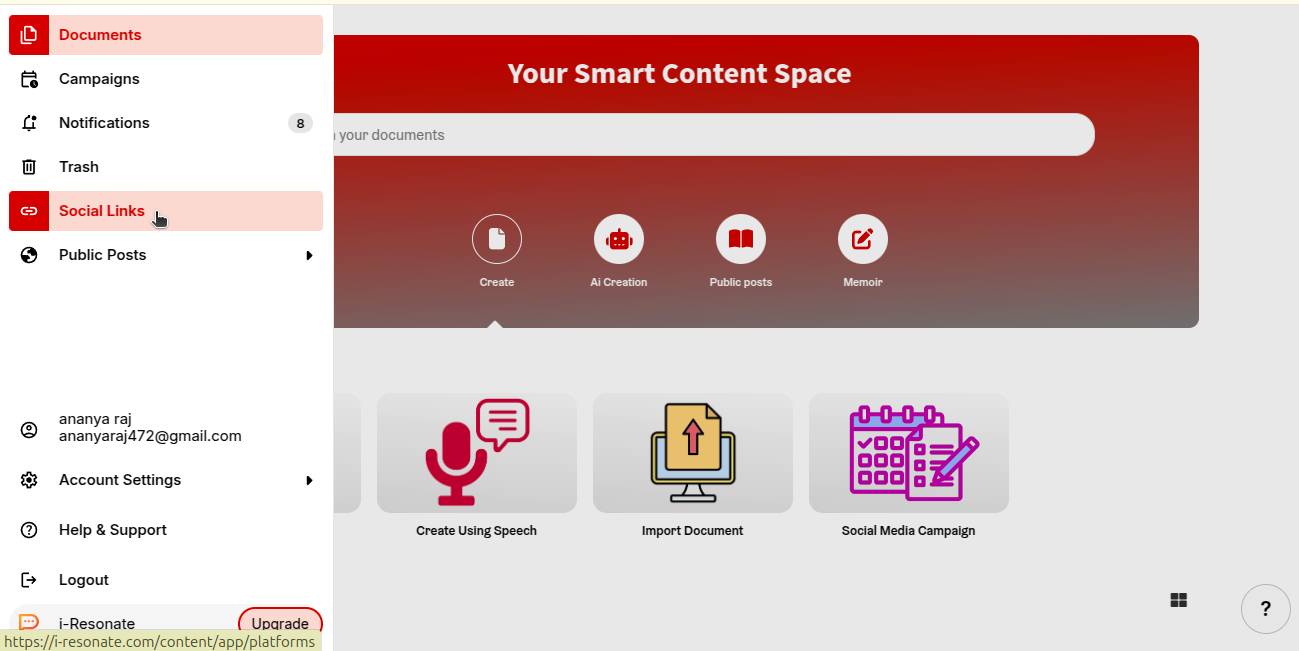
Step 1: Click on “Social Links” from the left navigation bar on the ContentCraft dashboard.
Step 2: Choose pexels from the list of available platforms and click “Link Now.”
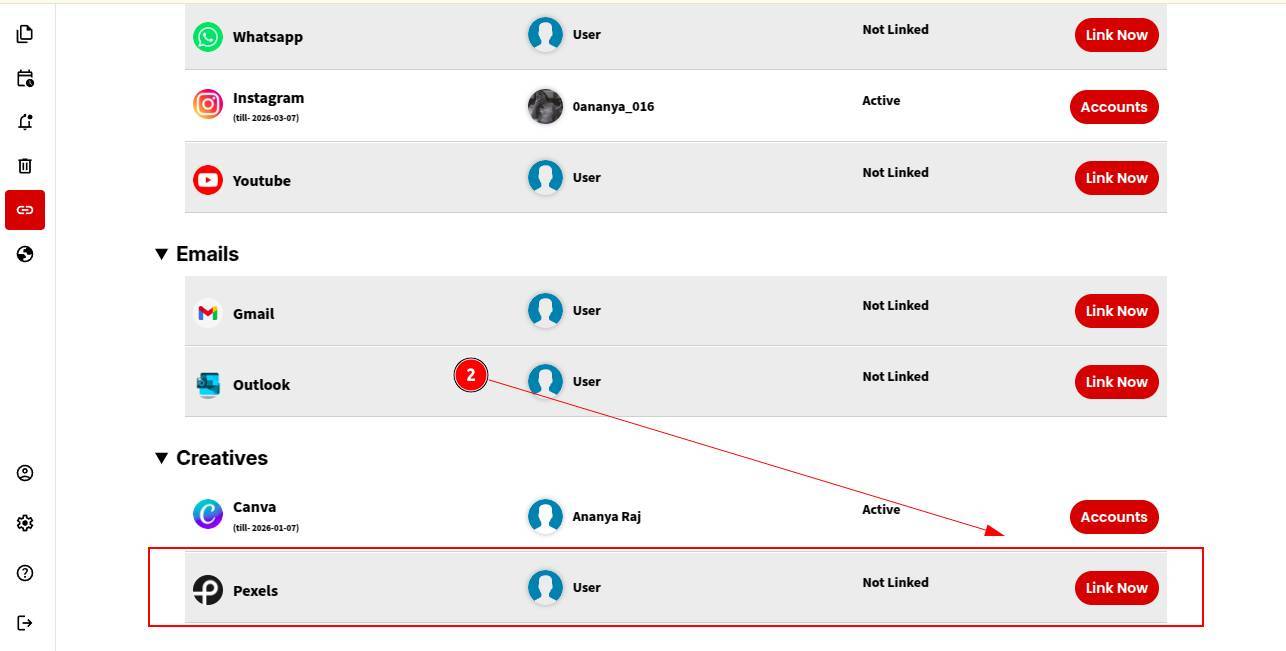
Now follow these steps in your logged-in account to complete the linking process.
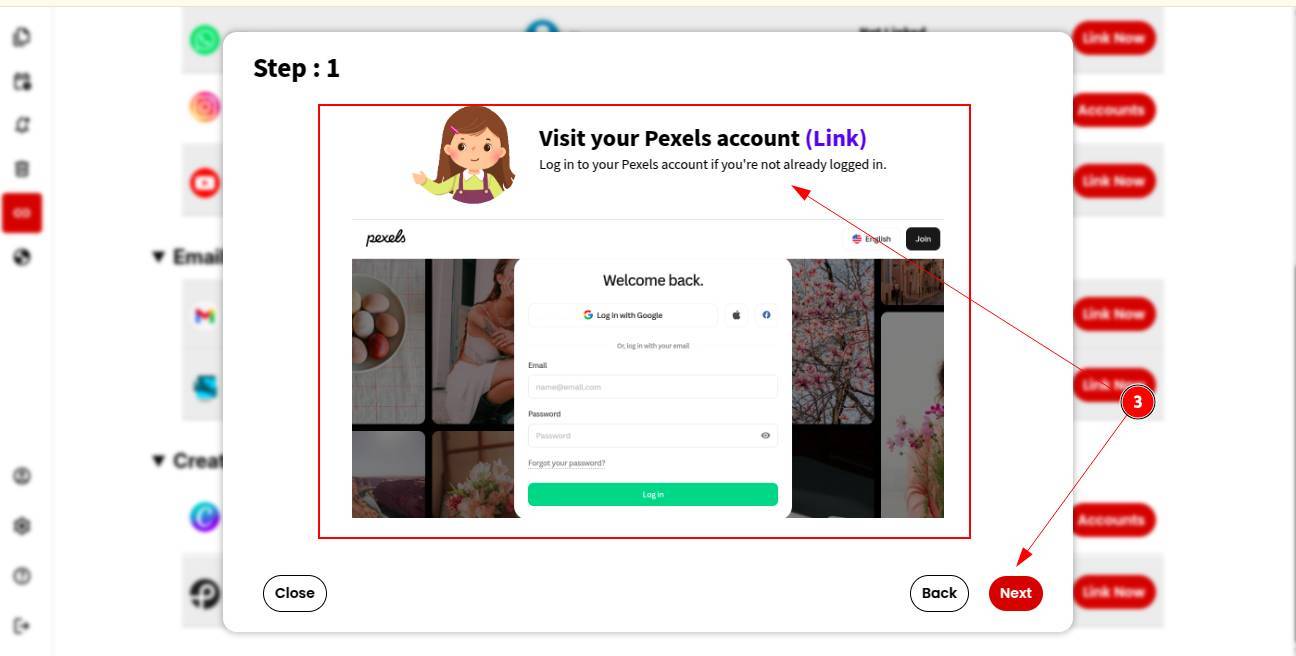
Step 3: Visit www.pexels.com and log in to your account. If you’re not logged in, sign in first, then click Next.
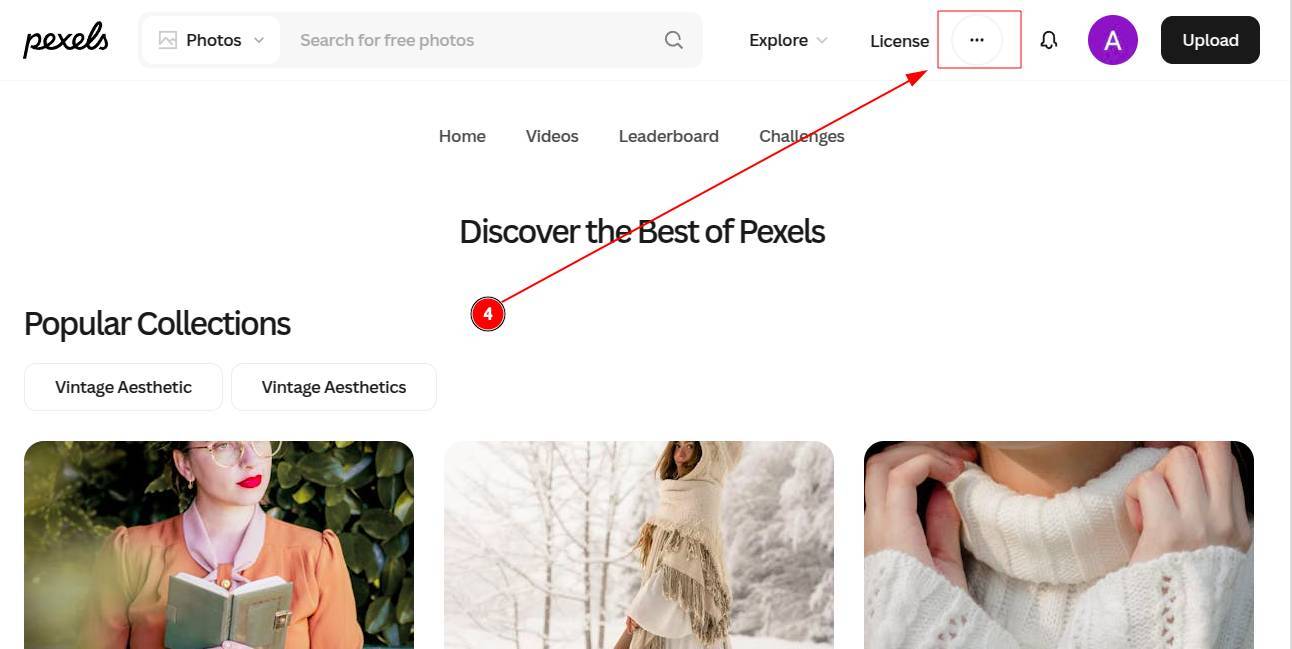
Step 4: Click on the three dots in the top menu of your Pexels account and select Images and Video API from the menu.
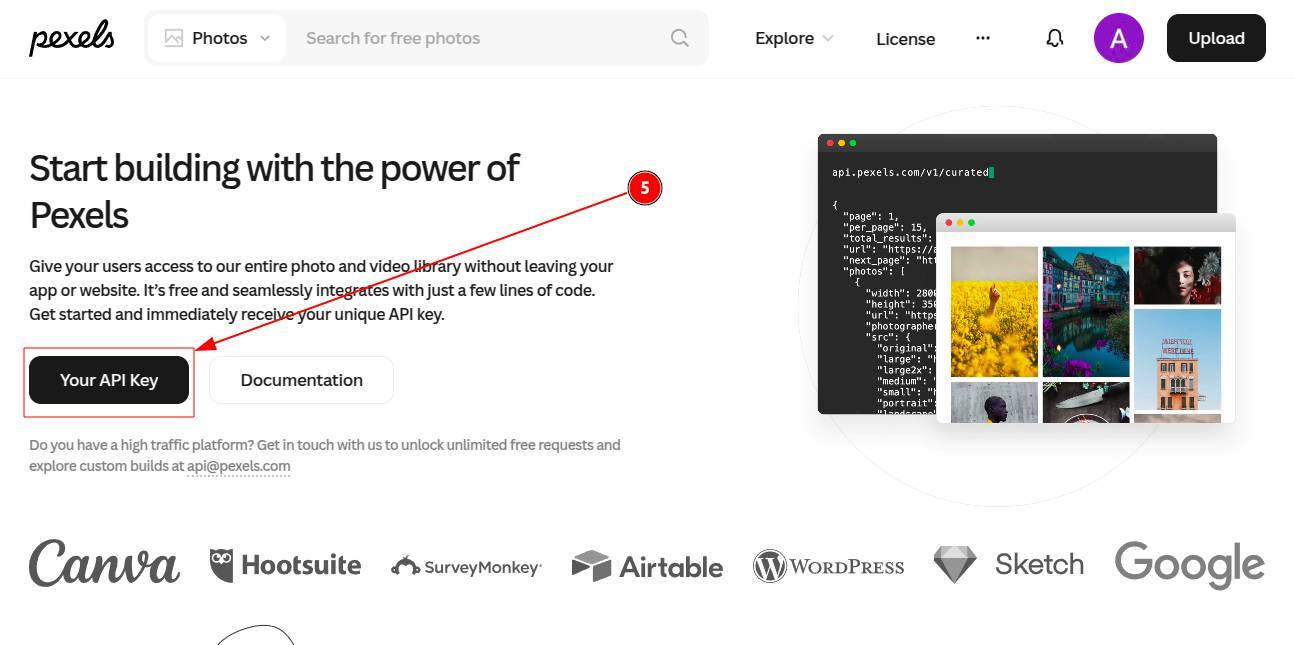
Step 5: Click on the “Your API Key” button.
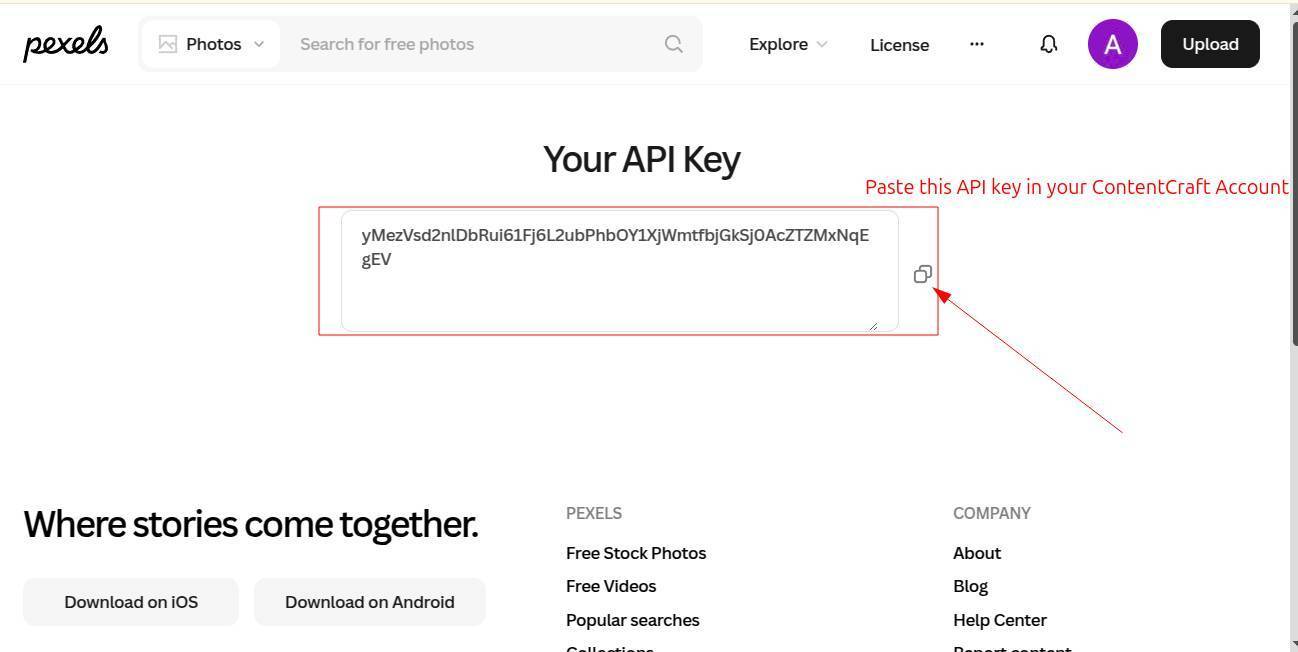
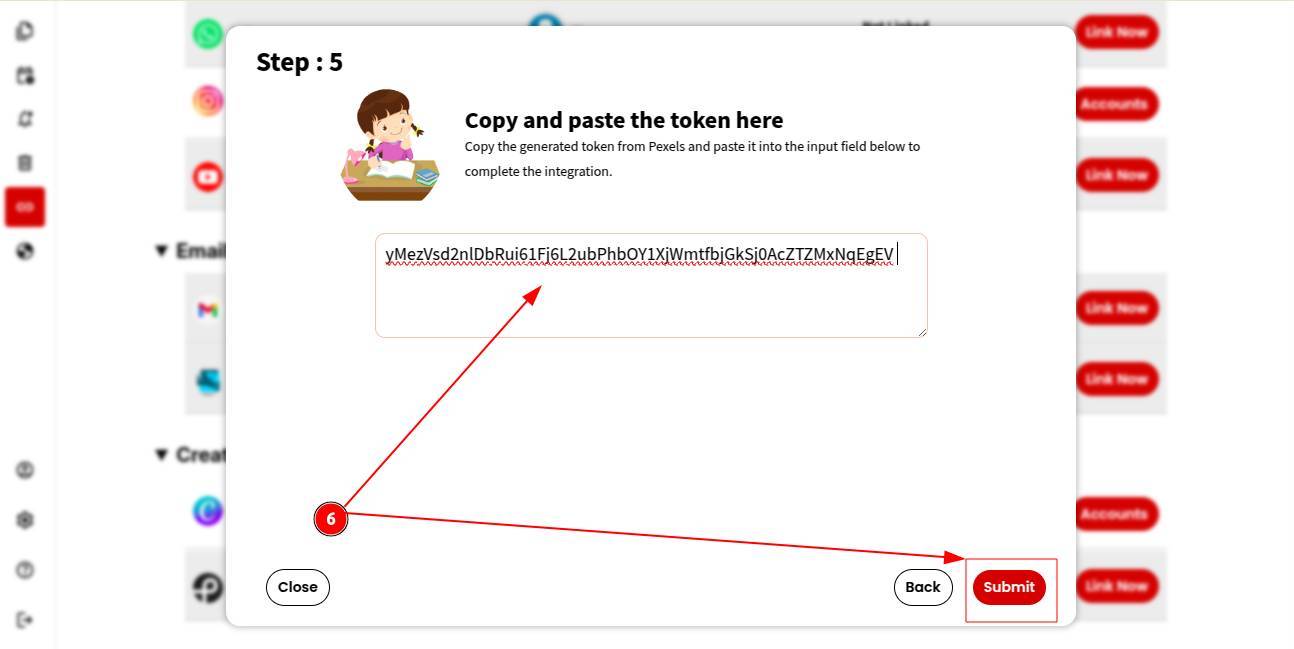
Step 6: Copy the API key and paste it into the space provided in your ContentCraft account, after following all these steps.
Click Submit to complete the process.
Your Pexels account is now successfully linked. You can now use images and videos directly while creating social media posts.